Start with the supplied print-ready file
This route uses Windows 11, Adobe Acrobat’s desktop PDF print dialog, a Brother SP1 with its Windows driver, genuine SP01 ink, and Brother SP01PL Letter paper. The source is Brother’s U.S. SP-1/SP-1W manual version D and Adobe’s current printing help, reviewed October 3, 2026. We have not installed a specific Acrobat or driver build, captured a live printer dialog, or measured a physical print. Record the app and driver versions you actually use; if their controls differ, resolve that before printing a batch.
Download the unmirrored Letter proof PDF. It contains the original three-inch Sunrise Sprig motif and a separate one-inch check square. The three-inch SVG is editable source artwork; use the PDF for this walkthrough so opening the SVG in another app does not introduce a sizing step. The printed hardboard coaster project supplies the exact blank and transfer instructions.
Open the PDF and preserve its scale
- Step 1Open the downloaded PDF in desktop Acrobat. Confirm it is a Letter page, 8.5 × 11 inches, and that the complete design and check square appear.
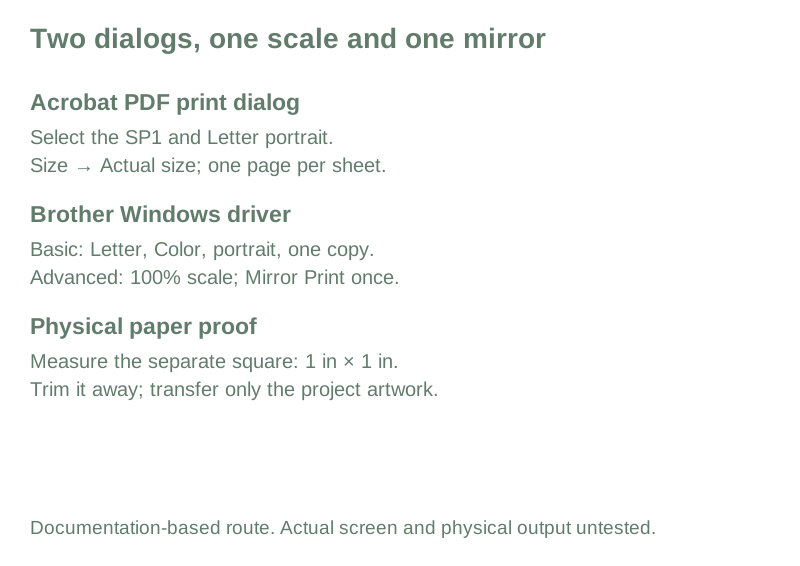
- Step 2Open Print and choose the Brother SP1 printer. Under Page Sizing & Handling, select Size, then Actual size. Adobe defines that choice as printing without scaling. Avoid Fit, Poster, Booklet and Multiple for this one-page file.
- Step 3Open the selected printer’s properties/preferences. In Brother’s Basic tab, select Letter paper, Color, portrait orientation and one copy. Use the media selection that matches Brother sublimation paper; do not copy a photographic-paper preset from an Epson guide.
- Step 4Check the Advanced tab for a second scaling setting. Keep scale at 100% and do not enable Fit to Paper Size. For this unmirrored PDF and the named coaster route, enable Mirror Print here exactly once. Brother’s Reverse Print rotates 180 degrees and is a different control.
- Step 5Return to the preview. Check that the design is not cropped and no second application mirror has been applied. Record any driver color adjustments instead of layering on an unrelated ICC profile.
The manufacturer manual is the authority for those driver labels: Windows print controls, printed pages 42 and 50–53. Adobe’s page-sizing help explains Actual size. These two documented interfaces are not a claim that every installed version looks identical.
Load, print and measure
Load supported Letter paper according to the SP1 loading instructions; the tray prints on the face-down surface. Print one proof. Before it touches the blank, measure the separate check square with a ruler. Each side must be one inch (25.4 mm). Check the motif’s specified three-inch art box against the file, and confirm the transfer’s mirror direction.
If the check square is wrong, return to the application and driver scale settings. Do not resize the supplied artwork to compensate for an unexplained printer setting. If the print is streaked or missing a color, use the SP1 quality-check route, then repeat the proof. A ruler check verifies scale; it does not verify color accuracy, coating compatibility or heat settings.
Cut away the check square and instructions before applying the artwork. Measure the actual blank and ensure the chosen placement is supported by the coaster project. Continue there for preparation, heat, removal and care. A passed print check alone does not authorize a substitute blank or press.
Keep a reproducible record
Download the blank artwork preflight PDF after measuring. Record the actual app/driver versions, paper, mirror location, scaling, measured square and any color controls on the setup card. Keep a photograph of the ruler check and the eventual item with your material log.
The SVG source allows you to edit the motif. After an edit or export, repeat the physical-scale check; a changed page size, art box or export option can change the output. This lesson stops at a documented, checkable print path. It does not supply fabricated screenshots or a claimed successful finished transfer.
Sources and review date
Reviewed October 3, 2026: Brother manual version D, SP1 supported operating systems, Brother SP01PL paper, and Adobe page-sizing help. The illustration is an original checklist diagram, not a printer-screen capture.
Page address: https://makepressrepeat.com/guides/brother-sp1-windows-first-print