Design size helper
Fit artwork to a measured usable area, preserve its proportions, and calculate the pixel canvas for your print workflow.
Fitted artwork
Enter a usable print area and desired artwork size to see a fit. Add project usable dimensions when known. You can use the documented F570 cut-sheet example for the printer constraint; blank limits remain separate.
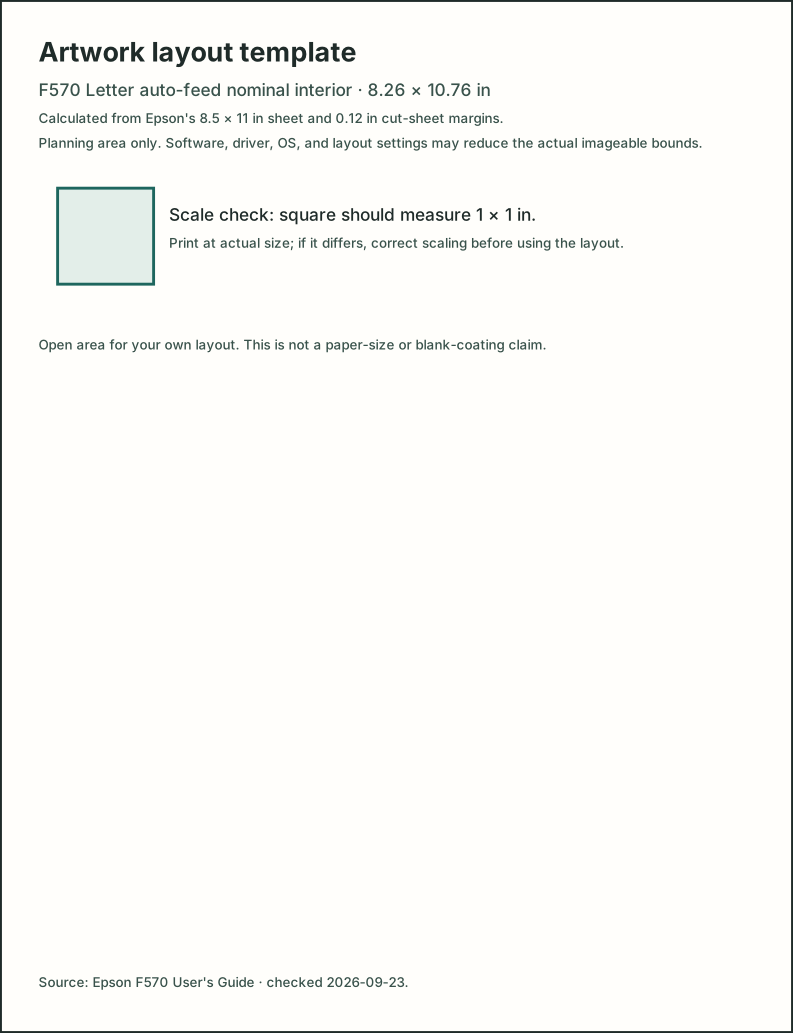
The template uses a manual-derived nominal area. Print at actual size and measure its 1 × 1 inch check square; print scaling can change physical accuracy.
How to use the measurements
Enter the printer or workflow's usable width and height, then the usable dimensions you measured on the project or blank. The helper limits each axis to the smaller value, reserves your chosen margins and any supplier-supported bleed, then fits the requested artwork.
- Effective area
- The smaller printer and project limit on each axis.
- Maximum available rectangle
- The effective area after subtracting margins on every edge.
- Fitted artwork
- The requested size scaled proportionally to fit the rectangle, with optional 90° rotation.
- Pixel dimensions
- The fitted physical size multiplied by the output resolution you enter.
Worked example with illustrative inputs
These are user-entered example values, not supplier or printer specifications: a 10 × 8 inch printer area, an 8 × 5 inch project area, a 9 × 6 inch artwork request, 0.25 inch margins, no bleed, locked proportions, and 300 DPI.
The effective area is 8 × 5 inches. After margins, the maximum rectangle is 7.5 × 4.5 inches. The 3:2 artwork fits at 6.75 × 4.5 inches, or 2025 × 1350 pixels, with no cropping.
If project dimensions are unknown, leave both project fields blank. The result then covers the printer or workflow limit only and cannot confirm that the artwork fits the item.
Next steps
Use the printable-area planning guide to separate printer bounds, supplier templates, and blank dimensions. Download the artwork preparation and size reference to record those limits and check printed scale.
Enter measurements from the exact blank, printer, or workflow you plan to use. The helper does not infer a garment design size, upload artwork, or guarantee that a driver can print to every edge.